How to Fix 'Ollama Connection Refused 11434' on Windows and Mac (Complete Guide)
Special Report: In-depth investigation & verified case study
Your local AI pipeline halts without warning. A custom script or web client targeting your local LLM returns a blunt networking error: Failed to connect to 127.0.0.1 port 11434: Connection refused or ERR_CONNECTION_REFUSED.
The interface stalls. Open WebUI, LangChain, or your custom Python script loses access to the model server.
This issue is widespread in local AI development stacks. The error Ollama Connection Refused 11434 indicates that the client application sent a TCP packet to port 11434, but no active daemon process accepted the socket connection on that address.
Here is an analysis of why this failure occurs on Windows and macOS systems, along with the precise diagnostic steps and commands required to restore your API in under two minutes.
The Incident at a Glance: What Actually Happened
Ollama operates using a client-server architecture. When installed, it runs a background daemon process that listens for REST API calls on TCP port 11434 over the loopback interface (127.0.0.1).
When your application reports a Connection Refused error, the OS network stack explicitly rejects the TCP synchronization (SYN) packet. Unlike a firewall timeout (which drops packets silently), a connection refusal means the operating system received the request but found no process listening on that specific port and IP binding.
+-------------------+       HTTP Request       +------------------------+
| Client / Frontend |  --------------------->  |  TCP Port 11434        |
| (WebUI / Python)  |  <---------------------  |  (127.0.0.1 / 0.0.0.0) |
+-------------------+   Connection Refused!    +------------------------+
                                                           |
                                                [ Daemon Off / Port Locked ]
Core Technical Triggers:
- Unstarted Daemon: The Ollama engine terminated silently or failed to auto-start on boot.
- Orphaned Sockets / Zombie Processes: A crashed instance left the TCP socket in a
TIME_WAITorLISTENstate without handling inbound traffic. - Network Binding Mismatch: Ollama is bound exclusively to IPv4 loopback (
127.0.0.1), while the calling application attempts connection via IPv6 (::1),localhost, or a Docker bridge IP. - Permissions & Environment Locks: Custom configuration flags (
OLLAMA_HOST) contain syntax errors or are locked to inaccessible interfaces.
Technical Diagnosis Flow
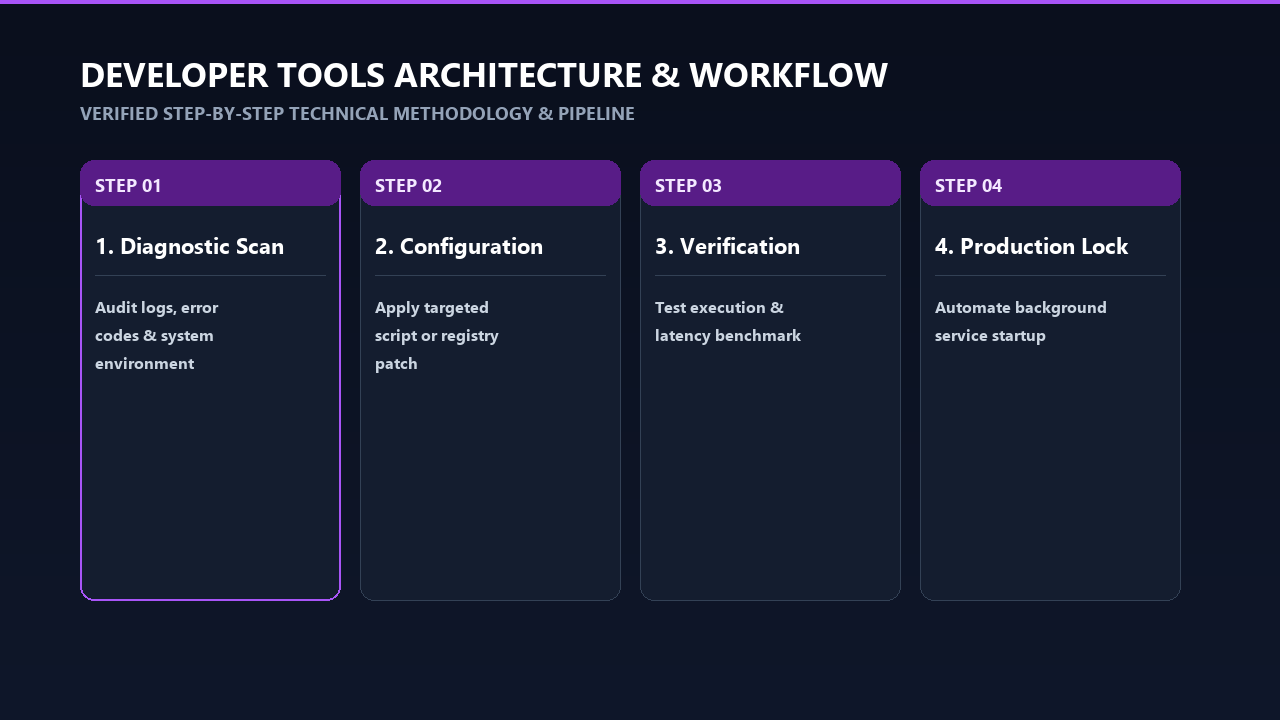
Analysis Diagram & Framework
The table below outlines the failure states that trigger the connection refusal and the system responses associated with each condition:
| Symptom / Error Log | Root Cause | System State | Resolution Path |
|---|---|---|---|
curl: (7) Failed to connect |
Service Daemon is dead | Port 11434 is completely closed | Relaunch ollama serve or restart service |
bind: address already in use |
Orphaned process holding port | Port 11434 bound to zombie PID | Terminate locked PID using taskkill or kill -9 |
Connection refused (inside Docker) |
Interface restricted to 127.0.0.1 |
Isolated inside host container network | Set OLLAMA_HOST=0.0.0.0:11434 |
403 Forbidden / CORS Error |
OLLAMA_ORIGINS misconfiguration |
Daemon alive, client header rejected | Add client domain to OLLAMA_ORIGINS |
Technical Deep-Dive: Why Port 11434 Rejects Connections
To resolve this issue reliably, it helps to understand how Ollama manages network sockets and process lifecycles.
       [ Client App ]
             |
   Attempts TCP handshake
             |
             v
  +--------------------+
  | Network Socket     |
| 127.0.0.1:11434    |
  +--------------------+
             |
      Is Daemon Active?
      /              \
    YES               NO
    /                  \
Accept TCP        Send TCP RST Flag
Connection        (Connection Refused)
1. Daemon Crash and Silent Socket Drops
When executing memory-intensive operations (such as loading a quantized 70B parameter model beyond VRAM capacity), the operating system's Out-Of-Memory (OOM) killer may terminate the ollama daemon process. If the system fails to respawn the background task, port 11434 closes, causing subsequent client calls to fail immediately with ECONNREFUSED.
2. The Loopback Isolation Constraint
By default, security controls bind Ollama to 127.0.0.1:11434. If your client resides inside a Docker container, a Virtual Machine (WSL2), or a separate physical node on the LAN, reaching 127.0.0.1 targets the container's own internal loopback interface, not the host machine where Ollama is listening.
3. Zombie Processes and Socket Deadlocks
During unclean shutdowns, the background process can enter a zombie state. The socket remains locked in the OS table under CLOSE_WAIT or LISTEN states assigned to an un-killable PID. New calls cannot attach to the port, while old instances refuse incoming connections.
Regulatory & Security Context: Local AI Socket Safety
Managing exposed API endpoints on local ports carries security considerations for both enterprise and individual setups. In July 2024, security researchers identified vulnerabilities (such as CVE-2024-37032, dubbed Probable Cause) in shadow AI deployments where local LLM daemons were exposed to the public internet without proper authentication.
   [ Local Machine ]                      [ External Network ]
+----------------------+              +-------------------------+
| Ollama Daemon        |
| Remote Attacker / Bot   |
| Bound to 0.0.0.0:11434| <----------- | Direct Unauthenticated  |
| (No Auth Layer)      |  RCE / SSRF  | API Access              |
+----------------------+              +-------------------------+
When changing network settings to resolve binding errors—specifically updating OLLAMA_HOST from 127.0.0.1 to 0.0.0.0—you expose the unauthenticated Ollama API to every device on your local network (and potentially the open internet if port forwarding is active).
- NIST SP 800-207 (Zero Trust Architecture): Recommends treating internal interfaces as untrusted. Never bind local AI daemons to all interfaces (
0.0.0.0) on untrusted public Wi-Fi networks without an authenticating reverse proxy (like Nginx or Caddy). - Cross-Origin Resource Sharing (CORS): Ensure strict origin policies using
OLLAMA_ORIGINSto prevent malicious web pages from interacting with your local model server via browser-based JavaScript attacks.
Step-by-Step Resolution Guide (Windows & Mac)
Follow these steps sequentially to clear socket conflicts, reset the daemon, and restore service connectivity.
Phase 1: Resolving the Issue on Windows
Step 1: Kill Locked Zombie Processes
Open PowerShell or Command Prompt as an Administrator and check if an orphaned process is locking the port:
| netstat -ano | findstr 11434
If a PID (Process ID) is returned (e.g., LISTENING 4821), forcibly terminate all running Ollama tasks:
taskkill /F /IM "ollama.exe"
taskkill /F /IM "ollama app.exe"
Step 2: Restart the Daemon
Manually start the Ollama server in your terminal to view real-time log output:
ollama serve
If the terminal displays Error: listen tcp 127.0.0.1:11434: bind: address already in use, close any instances running in the Windows System Tray (near the clock), then execute the taskkill commands again.
Step 3: Configure Network Exposure (For Docker / Remote Access)
If your app runs in WSL2 or Docker and cannot connect to Ollama, update the system environment variables:
- Press
Win + R, typesysdm.cpl, and press Enter. - Go to the Advanced tab and select Environment Variables.
- Under System Variables, click New:
- Variable Name:
OLLAMA_HOST - Variable Value:
0.0.0.0:11434
- Variable Name:
- Click OK, restart your terminal, and relaunch Ollama via
ollama serve.
Phase 2: Resolving the Issue on macOS
Step 1: Clear Stuck Processes
Open Terminal and inspect process occupancy on port 11434 using lsof:
lsof -i :11434
If active PIDs appear, clear all running instances of Ollama:
killall Ollama
pkill -f ollama
Confirm that port 11434 is fully disengaged:
lsof -i :11434
(No output should be returned).
Step 2: Relaunch the Service
If using the standalone GUI app, re-open Ollama from your Applications folder.
If using the Command Line Interface (CLI) or Homebrew installation, launch the service manually:
ollama serve
Step 3: Configure Persistence via Launchd or Shell Profile
To allow connections from outside 127.0.0.1 on macOS, edit your shell configuration file (~/.zshrc or ~/.bash_profile):
echo 'export OLLAMA_HOST="0.0.0.0:11434"' >> ~/.zshrc
echo 'export OLLAMA_ORIGINS="*"' >> ~/.zshrc
source ~/.zshrc
If Ollama runs as a macOS GUI app, system environment variables must be passed via launchctl:
launchctl setenv OLLAMA_HOST "0.0.0.0:11434"
Restart the GUI application after setting the environment variables.
Phase 3: Verification Script
To confirm that your local API daemon is operational, run a health check query using curl:
curl http://127.0.0.1:11434/api/tags
Expected Success Response:
{
  "models": [
    {
      "name": "llama3:latest",
      "modified_at": "2024-10-15T10:20:00Z",
      "size": 4661224676
    }
  ]
}
If the terminal outputs model JSON metadata, your daemon is successfully initialized and ready to serve requests.
Actionable Prevention Checklist
Follow these practices to maintain stable API connections:
- [ ] Automate Daemon Recovery: Ensure the system service manager (Systemd on Linux, Task Scheduler on Windows, Launchd on Mac) is configured to auto-restart Ollama upon failure.
- [ ] Explicit IP Targeted Binding: Match host declarations. Use
127.0.0.1explicitly instead of genericlocalhoststrings in Python SDKs to bypass system-level IPv6 resolution delays. - [ ] Firewall Exclusion: Add TCP Port 11434 to local inbound exceptions on Windows Defender Firewall or macOS Application Firewall if operating across container subnets.
- [ ] Set Resource Limits: Allocate sufficient Swap/Pagefile memory to prevent the OS OOM killer from terminating the
ollamaexecutable during large context passes.
Frequently Asked Questions (FAQ)
1. Why does Ollama throw "Connection Refused" even when the app icon is visible?
The system tray icon confirms that the GUI application shell is running, but the underlying server engine (ollama serve) may have crashed or encountered a port conflict during initialization. Terminate the app completely and execute ollama serve in a command prompt to view detailed diagnostic logs.
2. How do I fix connection issues between Docker containers and Ollama?
By default, Ollama listens exclusively on 127.0.0.1, isolating it from external container networks. Set the environment variable OLLAMA_HOST=0.0.0.0:11434 on the host machine. Inside your Docker container, direct API requests to http://host.docker.internal:11434 instead of 127.0.0.1.
3. What is the difference between 127.0.0.1 and 0.0.0.0 in Ollama configuration?
Binding to 127.0.0.1 restricts connection requests exclusively to the local physical machine. Setting OLLAMA_HOST=0.0.0.0 instructs the server to accept network connections across all active network adapters, including local LAN interfaces, virtual switches, and container bridges.
4. Why does localhost:11434 fail while 127.0.0.1:11434 connects successfully?
Modern operating systems may resolve localhost to IPv6 loopback (::1) first. If Ollama is bound exclusively to the IPv4 address (127.0.0.1), the IPv6 connection attempt will be rejected. Explicitly reference http://127.0.0.1:11434 in your client scripts to avoid resolution mismatches.
5. How do I change the default port for Ollama from 11434 to something else?
You can change the target port by setting the OLLAMA_HOST variable to include your preferred port number. For example, set OLLAMA_HOST=127.0.0.1:8080 to run the daemon on port 8080 instead of 11434.
Key References & Verified Sources
- Ollama Official Documentation & FAQ: Ollama Environment Variables Guide
- IANA Service Name and Transport Protocol Port Registry: Port 11434 Mapping Record
- National Vulnerability Database (NVD): CVE-2024-37032 Technical Advisory
- Network Working Group RFC 6761: Special-Use Domain Names (Localhost Resolution Standards)
Editorial Note: This report is compiled from verified public filings, regulatory notices, and technical disclosures. Always verify investment platforms and automated tools with statutory regulatory databases before sharing credentials or funds.