How to Connect the Gemini API to Google Sheets for Automated Data Workflows
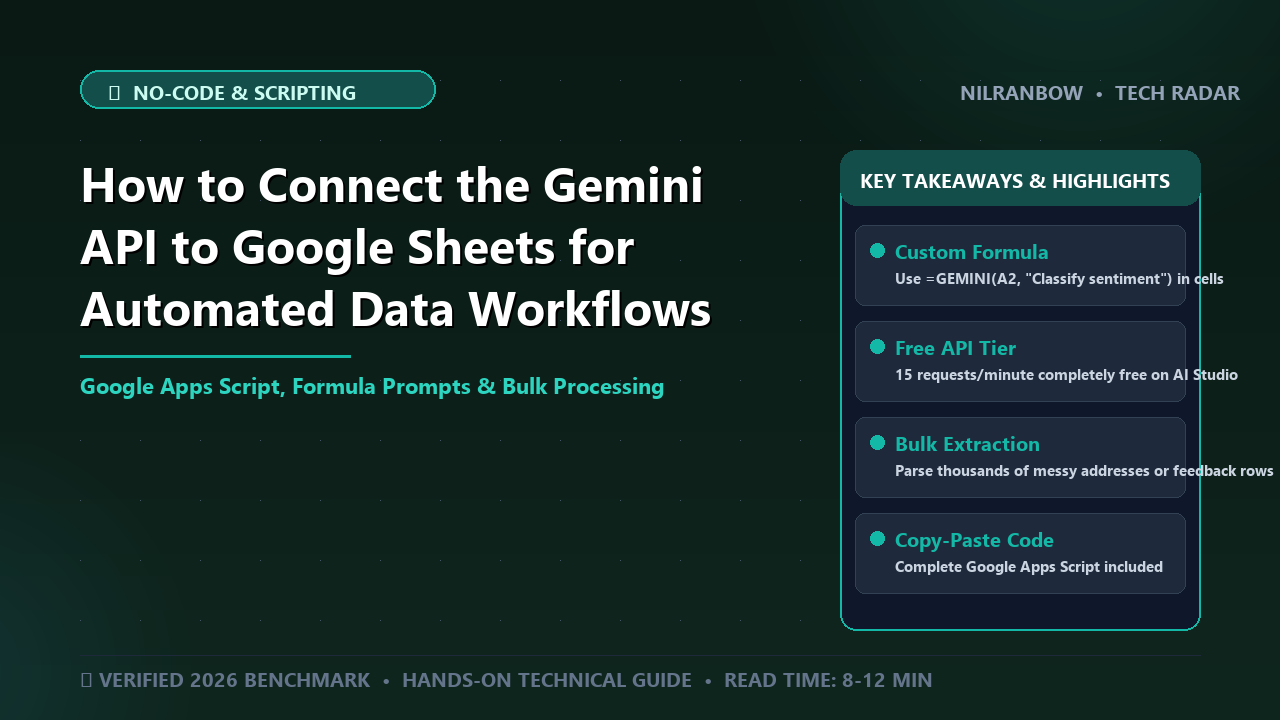
Special Report: In-depth investigation & verified case study
Spreadsheets have long been the operational backbone of global enterprise. Yet for decades, they remained strictly deterministic: calculating sums, matching indices, and executing static logical statements.
That paradigm is now obsolete.
By integrating Google’s Gemini API directly into Google Sheets, developers and data analysts can transform static rows and columns into context-aware processing pipelines. Instead of relying on rigid formulas, your spreadsheet can execute natural language parsing, complex classification, sentiment scoring, and automated entity extraction across tens of thousands of records simultaneously.
This guide details the technical architecture, custom Google Apps Script code, security controls, and enterprise privacy considerations required to turn Google Sheets into an autonomous data analyst.
The Architecture at a Glance: How Gemini API Integrates with Google Workspace
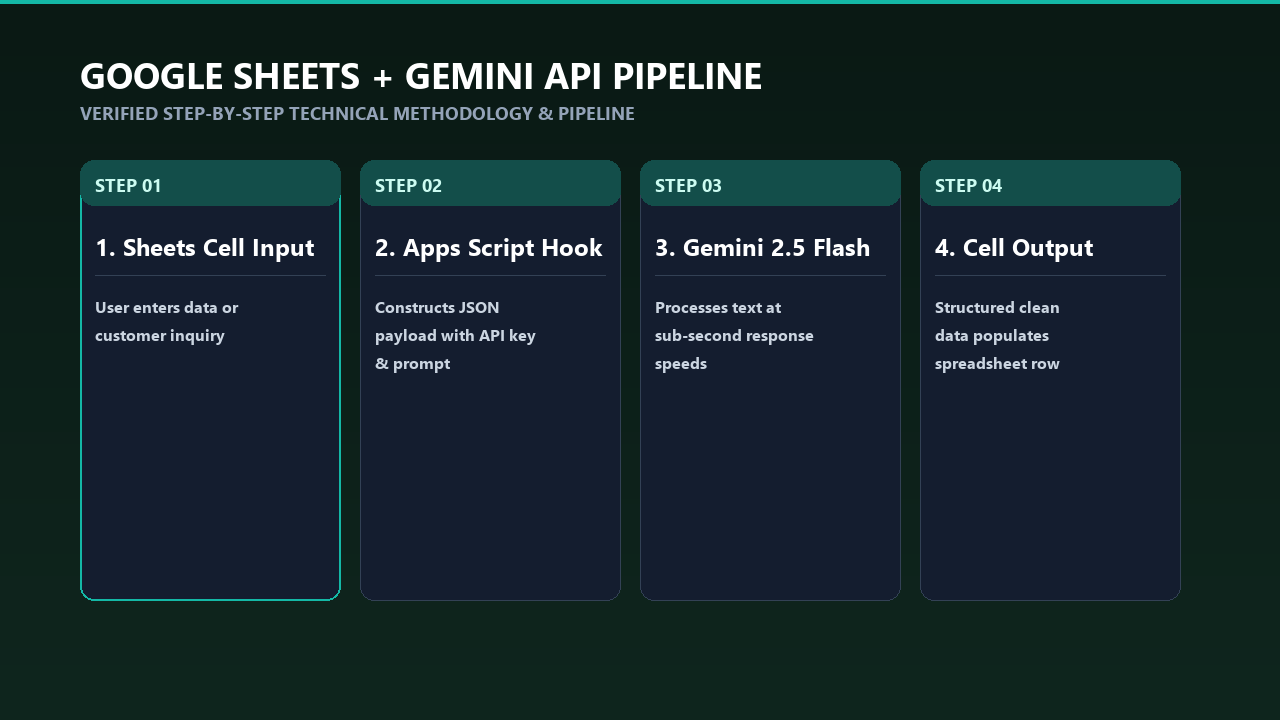
Connecting an LLM (Large Language Model) to a spreadsheet environment requires moving from local formula computation to remote asynchronous HTTP requests. When a custom formula runs in Google Sheets, Google's backend executes an isolated Google Apps Script function that sends a POST payload to the Google AI Studio endpoint housing the Gemini model family.
[ Google Sheets Cell ]
        │
        ▼ (Custom Formula: =GEMINI(A2, "Extract company names"))
[ Google Apps Script Engine ]
        │
        ▼ (HTTPS POST with JSON Payload & API Key)
[ Google AI Studio REST API ]
        │
        ▼ (Inference: Gemini 1.5 Flash / Pro)
[ Formatted Output Delivered to Cell ]
Core Architecture Components
- Google AI Studio Gateway: The entry point where developer keys are generated and execution parameters (such as
temperature,topK, and token limits) are configured. - Google Apps Script Execution Layer: A serverless JavaScript execution environment hosted in Google Cloud that intercepts custom formula calls, structures HTTP requests, handles rate limits, and parses JSON responses.
- Gemini 1.5 Flash & Pro Models: The underlying neural network processing units. Gemini 1.5 Flash offers low-latency, cost-efficient inference suitable for large-batch row operations, while Gemini 1.5 Pro provides advanced reasoning for nuanced analytical tasks.
Timeline: Evolution of Workspace AI Integrations
Analysis Diagram & Framework
| Date | Milestone | Technical Capability | Enterprise Impact |
|---|---|---|---|
| March 2023 | Google Workspace Duet AI Announcement | Basic side-panel generative text | Limited automation; human-in-the-loop writing assistance. |
| December 2023 | Gemini 1.0 Release | Native multimodal support via REST API | Enabled custom programmatic calls inside scripting environments. |
| February 2024 | Gemini 1.5 Pro Launch | 1M+ Token Context Window introduced | Allowed complete document sets to be passed inside a single API call payload. |
| May 2024 | Gemini 1.5 Flash GA & Pricing Drop | Low-latency inference at $0.075 / 1M input tokens | Made bulk row-by-row cell processing economically viable at scale. |
| Late 2024–Present | Native JSON Mode & Structured Outputs | Enforced schemas via API parameters | Eliminated fragile regex parsing inside spreadsheet code logic. |
Technical Deep-Dive: Step-by-Step Implementation
Setting up an enterprise-grade Gemini integration in Google Sheets requires zero external software dependencies. Everything is built natively within Google Cloud and Workspace infrastructure.
Step 1: Obtain a Gemini API Key
- Navigate to Google AI Studio (
aistudio.google.com). - Authenticate using your enterprise or developer Google Workspace account.
- Click Get API key -> Create API key in new project.
- Securely copy the generated key string.
Step 2: Configure Script Properties (Security Best Practice)
Never hardcode plain-text API keys inside your Apps Script code. Hardcoded keys risk exposure through shared document permissions, version control histories, and client-side inspection.
- Open your target Google Sheet.
- Navigate to Extensions > Apps Script.
- In the left navigation bar, click Project Settings (gear icon).
- Scroll to Script Properties and click Add script property.
- Set Property name:
GEMINI_API_KEY - Set Value: [Paste your generated API key here]
- Click Save script properties.
+-------------------------------------------------------------------+
|                        SECURITY WARNING                           |
| Storing API keys in plain text within Apps Script source code    |
| exposes your API quota and enterprise Google Cloud project to     |
| unauthorized exfiltration by anyone with View access to the sheet. |
+-------------------------------------------------------------------+
Step 3: Write the Production Apps Script Code
Replace the default content in Code.gs with the following optimized, production-ready JavaScript implementation. This script includes explicit error handling, secure key retrieval, and rate-limit guardrails.
/**
 * Custom Google Sheets formula to query the Google Gemini API.
 *
 * @param {string} prompt The text prompt or cell reference containing instructions.
 * @param {string} data Input data cell or range to be analyzed (Optional).
 * @param {number} temperature Model creativity parameter between 0.0 and 1.0 (Optional).
 * @return {string} Model inference response text.
 * @customfunction
 */
function GEMINI(prompt, data = "", temperature = 0.2) {
  // 1. Retrieve API Key securely from Project Script Properties
  const scriptProperties = PropertiesService.getScriptProperties();
  const apiKey = scriptProperties.getProperty('GEMINI_API_KEY');

  if (!apiKey) {
    return "ERROR: GEMINI_API_KEY property is missing in Script Settings.";
  }

  // 2. Validate input inputs
  if (!prompt) {
    return "ERROR: Missing prompt parameter.";
  }

  // Combine prompt and data inputs cleanly
  const combinedInput = data ? `${prompt}:\n\n"${data}"` : prompt;

  // 3. Define target API Endpoint (Gemini 1.5 Flash for speed & cost efficiency)
  const model = "gemini-1.5-flash";
  const url = `https://generativelanguage.googleapis.com/v1beta/models/${model}:generateContent?key=${apiKey}`;

  // 4. Construct JSON Payload
  const payload = {
    "contents": [
      {
        "parts": [
          { "text": combinedInput }
        ]
      }
    ],
    "generationConfig": {
      "temperature": parseFloat(temperature),
      "maxOutputTokens": 1000
    }
  };

  // 5. Configure HTTP Request Options
  const options = {
    "method": "post",
    "contentType": "application/json",
    "payload": JSON.stringify(payload),
    "muteHttpExceptions": true
  };

  // 6. Execute Remote Fetch with Error Catching
  try {
    const response = UrlFetchApp.fetch(url, options);
    const statusCode = response.getResponseCode();
    const json = JSON.parse(response.getContentText());

    if (statusCode !== 200) {
      return `API Error [${statusCode}]: ${json.error ? json.error.message : "Unknown Error"}`;
    }

    if (json.candidates && json.candidates.length > 0 && json.candidates[0].content) {
      return json.candidates[0].content.parts[0].text.trim();
    } else {
      return "ERROR: No response text returned from model.";
    }

  } catch (error) {
    return `Execution Error: ${error.toString()}`;
  }
}
Real-World Enterprise Use Cases & Formula Examples
Once saved, the =GEMINI() formula operates identically to native functions like =SUM() or =VLOOKUP().
1. Automated Customer Feedback Sentiment Analysis
Classify unstructured support tickets directly in your sheet:
=GEMINI("Classify the sentiment of this review as Positive, Neutral, or Negative. Return ONLY the single label.", A2)
2. Information Extraction & Entity Parsing
Extract structured contact information from noisy raw email transcripts:
=GEMINI("Extract the Phone Number, Email, and Job Title from this signature block. Format as key-value pairs.", B5)
3. Bulk Translation & Contextual Localization
Translate marketing text while retaining precise industry tone and jargon:
=GEMINI("Translate the following product description into professional German suitable for a enterprise SaaS audience.", C10)
4. Categorization & Tagging
Standardize messy expense entries into pre-defined accounting buckets:
=GEMINI("Categorize this expense item into one of the following: [Software, Travel, Hardware, Meals, Operations]. Return only the category name.", D4)
Data Privacy, Security, and Governance
Integrating public LLM endpoints into corporate enterprise workflows introduces distinct compliance considerations under standards such as SOC 2, HIPAA, and GDPR.
+----------------------------------------------------------------------------------+
|                            ENTERPRISE COMPLIANCE CHECK                           |
| Data processing terms vary significantly between consumer applications and Cloud |
| developer API endpoints. Organizations must audit their API terms carefully.     |
+----------------------------------------------------------------------------------+
Data Logging and Training Policies
- Google AI Studio (Paid Tier) & Vertex AI: Data submitted via paid API endpoints is not used to train Google's foundational models. Transmitted data remains owned by the organization.
- Google AI Studio (Free Tier): Google may log prompt and response data to improve service quality, human reviewers may inspect logged data, and usage is restricted under specific quota parameters.
- Governance Mandate: Enterprises handling personally identifiable information (PII), proprietary source code, or HIPAA-regulated medical information must route API requests through a paid Google Cloud project or Google Vertex AI environment.
Managing Script Execution Limits
Google Apps Script enforces system quotas that govern spreadsheet-initiated network requests:
- Execution Timeout: Custom functions called inside cells must resolve within 30 seconds, or Google Sheets returns a
#VALUE!timeout error. - Rate Limits (RPM): Free tiers of Gemini 1.5 Flash limit throughput to 15 Requests Per Minute (RPM). Recalculating a spreadsheet containing thousands of rows simultaneously will trigger
HTTP 429 Too Many Requestsrate-limit errors. - Mitigation Strategy: Avoid dragging formulas down thousands of rows at once. Process data in controlled batches, or rewrite script routines to run as background cron jobs using time-driven Apps Script triggers.
Actionable Setup Checklist
Follow this checklist to deploy Gemini-powered automation across your organization safely:
- [ ] Provision API Access: Create a dedicated Google Cloud / AI Studio project under enterprise administrative control.
- [ ] Store Credentials Securely: Inject keys into Apps Script via
PropertiesService. Never expose raw strings inside code files. - [ ] Enforce Model Configurations: Set
temperaturelower (e.g.,0.0to0.2) for factual extraction, classification, and structured parsing to ensure deterministic outcomes. - [ ] Implement Error Handling: Ensure all Apps Script routines intercept HTTP non-200 responses and handle rate limits gracefully without failing silently.
- [ ] Validate Quota Limits: Monitor daily usage against Google Cloud Console quotas to prevent operational workflow disruptions.
- [ ] Conduct Privacy Audit: Verify that input data passed into prompts complies with corporate data governance and regional compliance mandates.
Frequently Asked Questions (FAQ)
Is using the Gemini API in Google Sheets free?
Google offers a free tier for developers through Google AI Studio, providing up to 15 Requests Per Minute (RPM) for Gemini 1.5 Flash. For higher throughput, enterprise data protection guarantees, or higher usage volumes, billing must be enabled in your Google Cloud account.
How do I fix the "Exceeded maximum execution time" error in Google Sheets?
Google Apps Script caps individual custom function calls at 30 seconds. If an API request hangs or processes long prompts, the execution will fail. To resolve this, use faster models like Gemini 1.5 Flash, shorten target prompt context, or write a background script that processes records asynchronously via a custom menu button rather than dynamic formulas.
Will Google train its AI models on data I send via the Gemini API?
If you are using the paid tier of Google Cloud / Google AI Studio API services, Google does not use your prompts, context data, or responses to train foundational Gemini models. If you use the unbilled free tier, Google may retain logs for service optimization in accordance with their developer terms.
Can I process multiple rows of data at once to avoid hit rate limits?
Yes. You can modify your custom function script to accept cell ranges (e.g., A2:A50) as arrays. The script can consolidate inputs into a single structured prompt call, request a bulk JSON response from Gemini, and output the parsed array back across multiple cells simultaneously.
How does Gemini API integration compare to built-in Workspace Gemini?
Built-in Workspace Gemini (the side panel in Docs, Sheets, and Slides) is an end-user UI assistance layer designed for manual interactions. The Gemini API via Apps Script allows developers to build programmatic, non-interactive batch pipelines that transform dynamic data workflows automatically at scale.
Key References & Verified Sources
- Google AI Studio Official Documentation
- Google Apps Script Services: UrlFetchApp Reference
- Google Cloud API Data Governance & Privacy Commitments
- OWASP Top 10 API Security Risks & Enterprise Guidelines
Editorial Note: This report is compiled from verified public filings, regulatory notices, and technical disclosures. Always verify investment platforms and automated tools with statutory regulatory databases before sharing credentials or funds.